
The same screen also withdraws to an ordinary Bitcoin address: paste a bc1 address and the app sends your Lightning balance on-chain. The screen title changes to Withdraw to Bitcoin so it is clear which one you are doing.
Send a Lightning payment
- 1
Open Receive → Lightning and tap Send or withdraw Lightning funds.
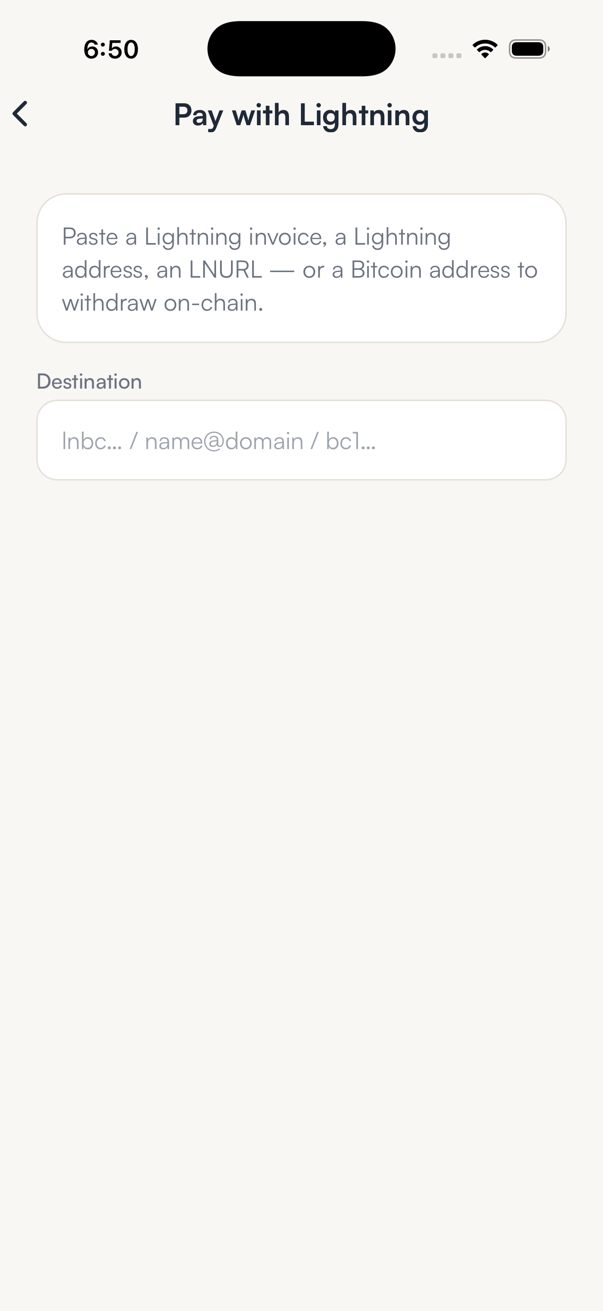
Pay with Lightning opens with one Destination field.
- 2
Paste or type the destination.
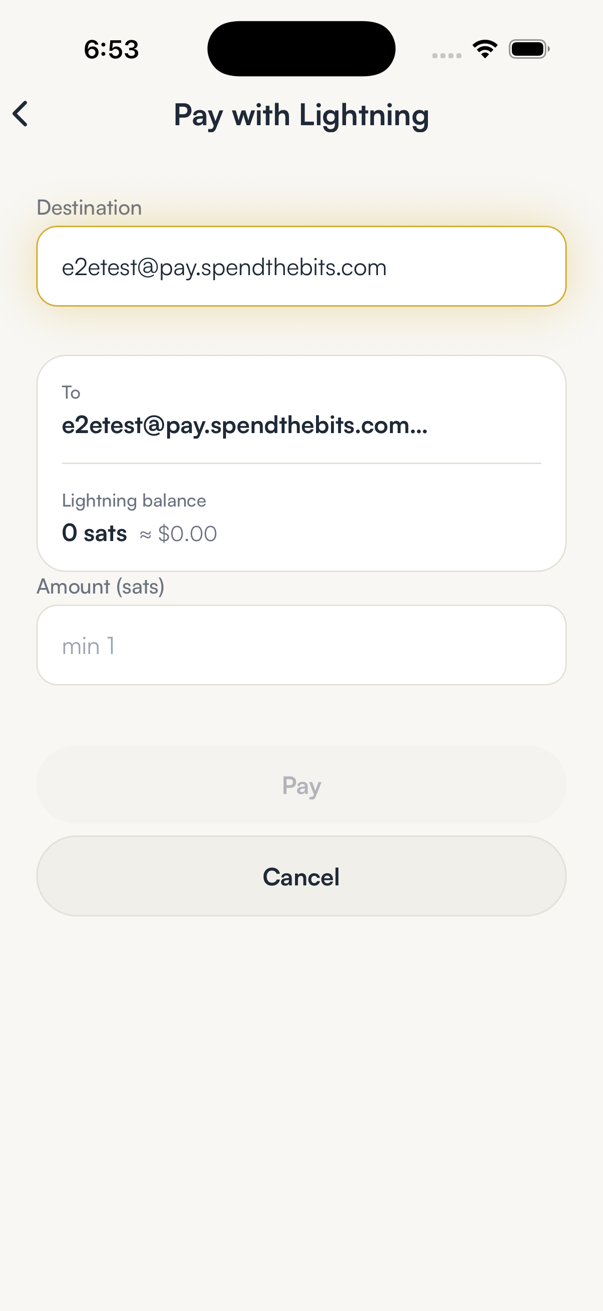
The app works out what you entered once you stop typing. A Lightning address shows who you are paying, your Lightning balance and an amount field.
- 3
Enter the amount in sats, if asked.
A Lightning invoice already contains its amount, so there is nothing to enter.
- 4
Check the network fee, tap Pay and confirm with Face ID or your passcode.
The fee shown is the Lightning network's routing fee. SpendTheBits adds no fee to Lightning payments.
Good to know
- If what you entered is not a Lightning invoice, address, LNURL or Bitcoin address, the app says so under the field and lets you edit it.
- Your Lightning balance is separate from your on-chain Bitcoin. Top it up from the Lightning screen with Top up from on-chain Bitcoin.
- Lightning runs on Bitcoin mainnet only.
Frequently asked
Usually a few seconds. The payment either settles or fails as a whole; it cannot get stuck halfway with your money gone.
A small routing fee paid to the Lightning network, shown before you confirm. SpendTheBits itself charges nothing on Lightning.
Yes. Lightning addresses and LNURL are open standards, so SpendTheBits can pay addresses from other wallets and other wallets can pay yours.
Get SpendTheBits
A fully non-custodial wallet for 13 chains, free on iOS and Android. Your keys never leave your phone.